Install Forge Bible Bot
Tap Share ⎙ then "Add to Home Screen" in Safari
Forge Bible Bot
Everything you need to get the most out of Forge Bible Bot — from first install to advanced features.
Setup takes about 2 minutes. Here's how to get Forge Bible Bot live in your Twitch channel:
1 Sign in — Visit forgebiblebot.com and click "Add to Twitch". Sign in with your Twitch account to authorize the bot.
2 Mod the bot — In your Twitch chat, type: /mod ForgeBibleBot
This gives the bot permission to post messages in your channel. Without this, it will try to respond but Twitch may throttle its messages.
3 Test it out — Type !verse John 3:16 in your chat. The bot should respond with the verse!
4 Explore your dashboard — Go to your Dashboard to customize settings, toggle features, and set up the stream overlay.
Forge Bible Bot is actively developed with new features released regularly. Please bookmark your dashboard and visit it often — new capabilities like channel point redemptions, overlay themes, and stream event responses are added via updates. They're all off by default, so you need to visit your dashboard to turn them on.
1 Bookmark your dashboard — Visit forgebiblebot.com/dashboard regularly to see announcements, enable new features, and manage your community.
2 Install as an app — Click the install prompt in your browser to install FBB as a PWA on your phone, tablet, or desktop. No app store needed.
3 Enable push notifications — Get notified of important updates directly on your device.
Adding Forge Bible Bot to your Discord server unlocks additional features like rich embeds, slash commands, Verse of the Day auto-posting, Prayer Wall sync, scheduled posts, and more.
1 Add to Discord — From the landing page or your dashboard, click "Add to Discord" and select which server to add the bot to. You can connect up to 5 servers to one account - each keeps its own channels, settings, and reading plan.
2 Set up Verse of the Day — In your dashboard under Verse of the Day, pick the Discord channel, time, and timezone for the daily auto-post. The bot posts a themed verse every day from a curated 70-verse rotation.
3 Set up Prayer Wall sync — Under Prayer Wall settings, choose a private Discord channel where prayer requests will be posted when someone uses !prayer or /prayer.
Kick is a fully supported Forge Bible Bot platform. The full Bible core, study, engagement, navigation, community, and ministry content command set works on Kick, plus cross-platform simulcast bridging for prayer and praise when you are live on both Twitch and Kick at the same time. Event-driven features (first-chatter welcome, follow welcome, sub responses, gift sub responses, KICKs responses, the go-live stream activity overlay, go-live Discord notifications, and spam-bot moderation) all ship in v5.0.0. Version 9.0.0 adds Kick channel point rewards, ad break messages with a Run Ad Break button, threaded replies, and spam message removal.
1 Connect your Kick account - From your Dashboard Overview panel, find the Kick connection row and click "Connect Kick". Kick uses OAuth 2.1 with PKCE, so you will authorize Forge Bible Bot to read your channel, send chat messages, remove spam, run your channel point rewards, and start ad breaks.
Connected before v9.0.0? A green New Kick features are ready banner appears at the top of every dashboard page. Choose Sign in to Kick on it once. Kick only grants new permissions at sign-in, so this one sign-in turns on channel point rewards, ad breaks, and spam message removal together. Your settings stay exactly as they are, and the banner goes away once you are done.
2 Mod ForgeBibleBot in your Kick channel (crucial for full functionality)
Kick blocks URLs and emojis from non-moderator accounts by default. To unlock full-fidelity command delivery on Kick, add ForgeBibleBot as a moderator through your Kick Creator Dashboard:
Then return to your FBB dashboard Kick Settings tab and click Recheck on the Bot Moderator Status card. The bot will send a short probe message to your Kick chat to confirm. The status card turns green when mod is detected.
Why this matters: Without mod status, your !testimony, !about, !ministry, and !fbb responses on Kick will have URLs and emojis stripped. Verse lookups, trivia, bookmarks, and all other commands still work either way - you just get full-fidelity delivery once the bot is modded.
Note: the Kick /mod ForgeBibleBot chat command path requires the target account to follow your channel first. The dashboard Roles/Moderators path described above does NOT have this requirement and is self-serve - no follow needed. Use the dashboard path.
3 Test it out - In your Kick chat, type !verse John 3:16. The bot should respond within a second or two. If nothing appears, check that your Kick connection badge shows Webhook on the dashboard Overview panel.
4 Review Kick-specific settings - Open the Kick Settings tab in your dashboard for connection status, the Kick platform notice, per-feature toggles, and overlay controls for every Kick event handler.
!verse, !v, !read, !chapter, !random, !r, !votd, plus auto-detect of Bible references in free-form chat!translation / !trans for viewing the Kick-available translation list and setting your preferred translation!trivia / !a / !answer, !streak, !score, !leaderboard / !lb, !global / !globalboard, !save / !bookmark, !saved / !bookmarks, !next / !n, !prev / !p, !search, !xref!prayer / !pray, !praise - submissions sync to your Discord prayer/praise channels just like Twitch does, labeled with "(Kick)"!topic <ref> [| desc], !topic clear, !q add, !q next, !q done, !q list, !q remove <#>, !q promote <#>, !q clear!ask <question> - submits a question to a pending tray awaiting mod or streamer approval; approved questions join the regular discussion queue with full credit chain!jesussaid (red-letter quotes with overlay and optional TTS), !proverb (wisdom on overlay), !biblejoke (curated Bible-themed jokes for lightening the mood), !gospel in all 12 languages (plus localized aliases !evangelio, !evangelium, !evangile, !evangelho, !ebanghelyo, !gospel-ko, !gospel-ja, !gospel-zh, !gospel-ru, !gospel-ar, !gospel-hi)!about, !testimony, !ministry, !help, !cmds, !commands, !fbb, !forge{user}, {channel}){user}, {channel}){user}, {duration}, {random_verse}, {channel}){gifter}, {count}, {recipients}, {random_verse}, {channel}){user}, {amount}, {gift_name}, {sender_message}, {random_verse}, {channel}){duration}, {minutes}, {channel}). Start a break yourself with the Kick Ad Break buttons (30, 60 or 90 seconds) in Stream Mode, the Streamer Hub dock, or the Controls dock. Kick decides which channels run ads, by category and region, and gives creators no setting to turn them on; on a channel without Kick ads the buttons say so.Each card on Dashboard → Kick Settings has its own feature toggle and overlay toggle, so you can enable just the pieces you want.
Note for Kick affiliates and partners: Daniel, the developer behind FBB, is not yet a Kick affiliate himself, so a handful of affiliate-gated event handlers (KICKs responses, sub responses, gift sub responses) and Kick ad breaks, which only run on channels Kick has turned ads on for, have been built ahead of being validated against real live events. If you are a Kick affiliate or partner and something is not working, please submit a support ticket with as much detail as you can share.
Simulcast bridging cross-posts !prayer and !praise submissions between your Twitch chat and your Kick chat when you are live on both platforms simultaneously. A viewer in Twitch chat submitting a prayer request will see that prayer relayed to your Kick audience as "Prayer from Twitch viewer <name>: <text>", and vice versa. Both audiences get to participate in the same moment of ministry without either being unaware of what the other is hearing.
To enable it: open your Dashboard → Kick Settings, find the Simulcast Bridging card, and flip the toggle. Bridging only fires when you are live on both platforms - if you are live only on Twitch, Twitch submissions stay on Twitch. Discord prayer/praise sync, overlay celebrations, and Prayer Wall storage all continue to fire exactly once per submission; the bridge is a chat-only relay.
Live-state comes from Twitch stream.online/stream.offline webhooks and Kick livestream.status.updated webhooks. A 10-minute reconciliation check against Twitch Helix and the Kick Channels API serves as a backstop so bridging cannot keep firing if a webhook is missed.
Kick supports 18 of the 21 translations day one - ESV, NIV, NKJV, NLT, BSB, KJV, WEB, ASV, YLT, BBE, DARBY, NIrV, LSV, GNV, FBV, plus the three French translations (LSG, JND, OST). The three Lockman Foundation translations (NASB 2020, NASB '95, AMP) are licensed via FastTrack for Twitch and Discord only. On Kick these silently fall back to ESV. Outreach to Lockman for amendments extending the license to Kick is pending.
Kick enforces two platform filters on messages from non-mod user accounts that do not apply on Twitch -
forgebiblebot.com, youtube.com/...)ForgeBibleBot sends chat as a standard user account. By default both filters apply, so the bot proactively strips URLs and emojis from every outgoing Kick message and converts em/en-dashes to regular hyphens. Verse text, trivia, bookmarks, prayer, praise, and most commands are unaffected.
The bot tracks its moderator status per Kick channel. When you mod the bot in your Kick chat, the dashboard auto-detects it (via the Recheck button or a deferred probe after OAuth) and stops stripping URLs and emojis for that channel. If mod status is later revoked, the first failed send auto-downgrades back to stripping mode.
Current status for your channel is visible in the dashboard Kick Settings tab under Bot Moderator Status.
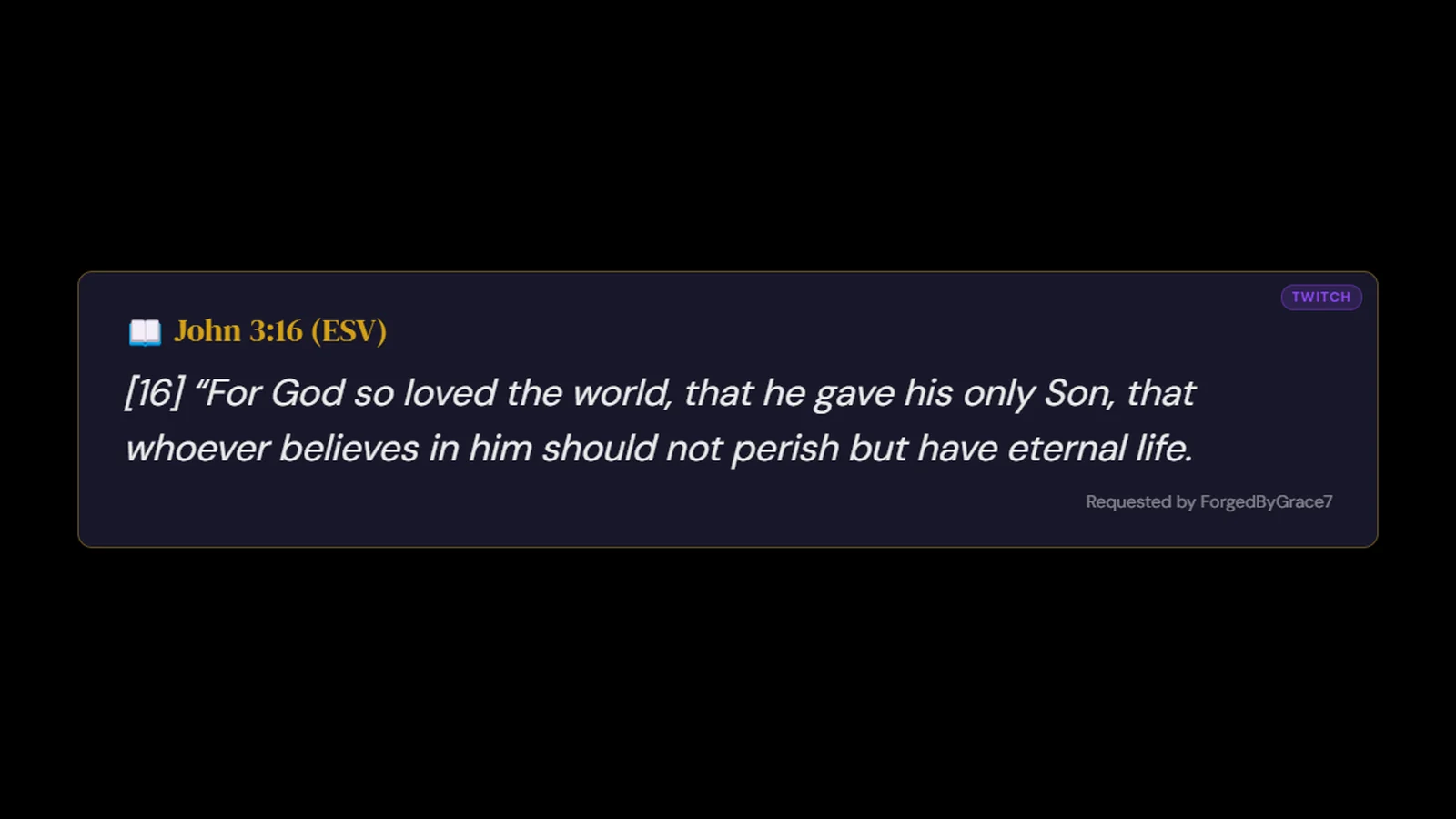
The overlay displays verses, trivia, Jesus quotes, proverbs, study topics, the discussion queue, stream events (raids, follows, subs, cheers, channel points), shoutouts, a countdown timer, and celebration effects directly on your stream. It slides up, displays for a configurable duration, then fades out. Choose from 4 theme presets or set custom colors to match your branding.
The instructions below are written for OBS Studio 32.1 (released March 2026), since it is the most widely used. The same browser-source workflow applies to Streamlabs Desktop, Meld Studio, and XSplit - the menu names differ, but the steps (add a Browser source, set 1920x1080, paste the overlay URL) are the same. If you're using an older OBS version, the steps are similar but some menu names may differ slightly.
1 Copy your overlay URL — In your Dashboard, scroll down to the OBS Overlay section and copy the URL. It looks like: https://forgebiblebot.com/overlay/abc123...
2 Add a Browser source in your streaming software — In OBS, click the + button in the Sources panel. In OBS 32.1, the source type is called "Browser" (older versions called it "Browser Source"). In Streamlabs Desktop and XSplit the equivalent is called "Browser Source"; in Meld Studio it is added via the layer/source menu the same way. Give it a name like "FBB Overlay".
3 Configure the source:
4 Position the source — Right-click the Browser source and choose Transform, then Fit to screen, so it fills your scene. On a 1920x1080 canvas it already does; on any other canvas size this scales the 1920x1080 source to fit. The overlay has a transparent background and layers cleanly over your stream. To position individual elements (verses, trivia, timer, events, topic), use the Overlay Editor in your dashboard - it provides a drag-and-drop canvas for placing each zone independently around your webcam, game capture, or other stream elements.
5 Test it — Type !verse Psalm 23:1 in your Twitch chat. You should see the verse appear in your streaming software preview within a few seconds!
Each of these can be individually toggled on or off in your dashboard under General Settings → Stream Overlay → Overlay Display Controls. You can also toggle specific event overlays directly within each event's settings section in Twitch Settings.
Customize the look of your stream overlay to match your stream branding. Go to General Settings → Stream Overlay in your dashboard.
Theme Presets: Gold (default dark background with gold accents), Light (white background, dark text), Dark (subtle dark tones), Minimal (transparent background, clean sans-serif font).
Color Customization: Use the four color pickers to override the theme's default primary color, background color, accent color, and text color.
Font Size: Choose Small, Medium (default), or Large to set how big text appears across your whole overlay - verses, trivia, alerts, the topic, the timer and the queue.
Overlay Editor: Open the Overlay Editor from your dashboard to visually position each overlay element. Drag and drop each zone - Verses, Topic, Trivia, Timer, Events, the discussion Queue and the three song panels - anywhere on a preview canvas. Each zone can be resized and positioned independently so your overlay fits perfectly around your webcam, game capture, or other stream elements.
Text size per zone: Click a zone in the Overlay Editor and use the Text size slider to make everything in it bigger or smaller, from 70% to 160%. Trivia and Verses also have Fine-tune lines, so you can make the trivia hint bigger than the question, or the verse reference smaller than the verse. The song panels size their text to their box instead - drag the box edges. Press Save Layout when you are done.
Zones you are not using: When everything a zone shows is switched off in Display Controls, like the three song panels if you do not play music, that zone leaves the editor canvas so the ones you do use have room. Tick a switch back on and the zone returns where you left it. To place a zone before switching it on, tick Show turned-off zones below the canvas and it appears faded. Verses and Events always stay, because Bible jokes, reading plans, crisis resources and prayer celebrations still land there.
Font Style: Choose from 10 clean, readable fonts: DM Sans (default), Inter, Roboto, Open Sans, Lato, Poppins, Nunito, Source Sans, Raleway, or Montserrat.
Display Duration: How long each notification stays on screen. Choose 10, 15 (default), 20, 25, or 30 seconds. Trivia and special events have their own durations that scale proportionally.
Scene layouts: Main is the overlay every scene uses. When one scene needs things somewhere else, like lyrics up front on a worship scene or a clean starting-soon screen, choose New layout at the top of the Overlay Editor. You can have up to seven. A new layout starts as a copy of Main and keeps following Main for anything you leave alone. Whatever you change on it, such as a zone you move or restyle, a color, the font, or an element you hide, becomes that layout's own. Each layout has its own overlay link: paste it into the Browser source in that scene. A layout can hide more than Main, but it never turns back on anything Main has turned off.
More than one overlay source: A scene layout's link goes into a Browser source of its own, and OBS starts every new one at 800x600, so set each Forge Bible Bot source to Width 1920 and Height 1080. In each one's properties, also tick Control audio via OBS, so sounds play once, from the scene you are on. If you delete a layout, a Browser source still using its link shows an Overlay layout deleted notice instead of quietly showing nothing, so you know to paste in another layout's link.
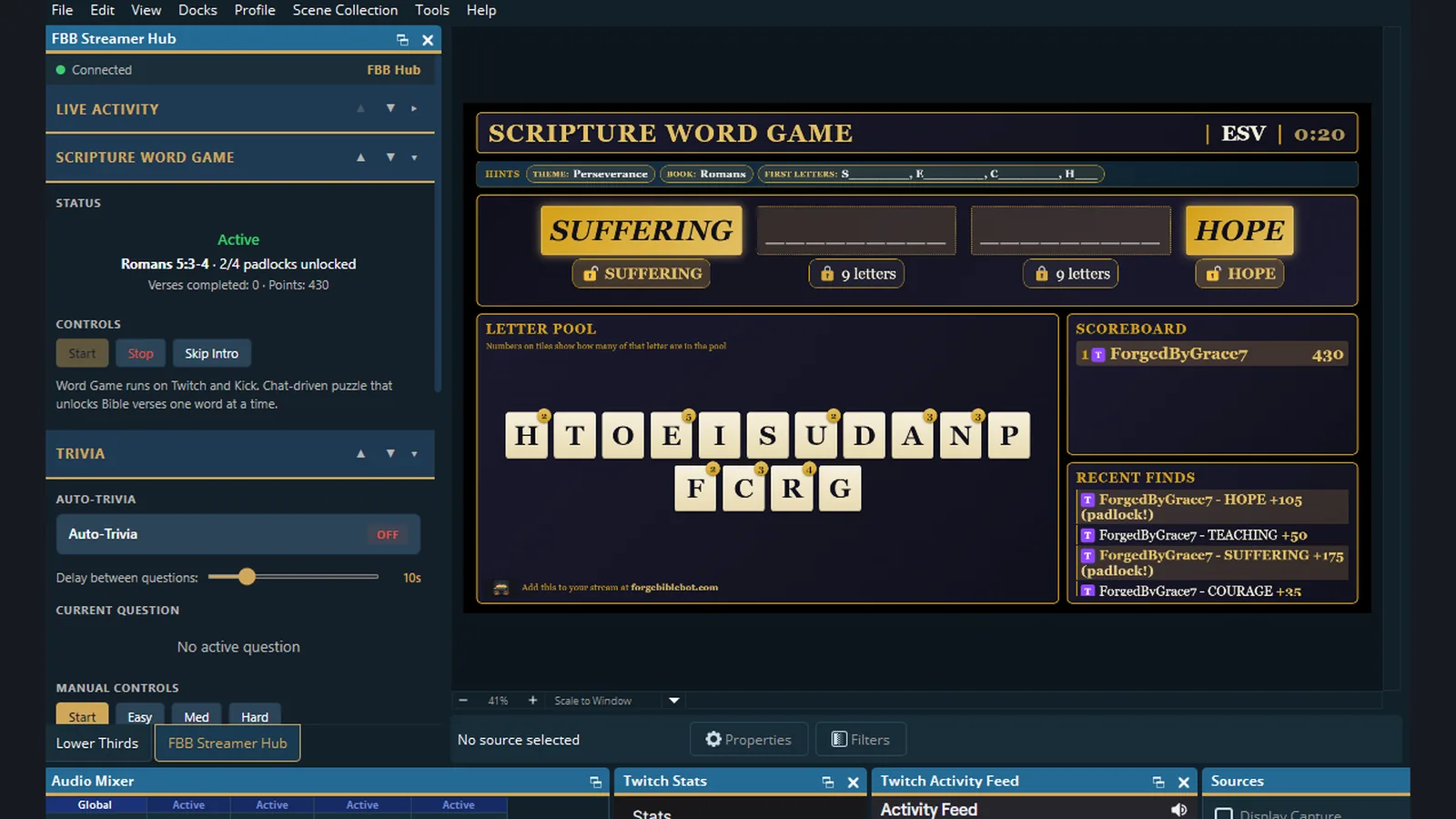
Control FBB directly inside your streaming software. Browser Docks are compact panels embedded in OBS Studio, Streamlabs Desktop, Meld Studio, or XSplit for quick access to stream controls, live activity feeds, and trivia management. New in v6.1.0: the unified Streamer Hub dock combines every panel into one URL - ideal for Meld Studio (single-dock limit) and convenient for anyone who prefers one consolidated view.
Stream Controls — Toggle overlay, trivia, auto-detect, celebrations, and features instantly.
Live Activity Feed — Real-time prayer requests, praise reports, and queue items with action buttons and optional audio alerts.
Clearing the feed: Clear on a prayer request or praise report takes it off every dock you have open, and it stays off after OBS restarts. It only tidies the docks: the item stays on your Prayer Wall and Praise Wall, which have their own remove buttons. Prayed marks the request as prayed for, which also takes it off the docks.
Trivia Controls — Start/skip trivia, set difficulty, and toggle Auto-Trivia mode for continuous questions.
1 Go to Browser Docks to copy your dock URLs (including the new Streamer Hub URL).
2 In OBS: Docks menu → Custom Browser Docks... In Streamlabs / Meld / XSplit, see the per-software instructions on the Browser Docks page.
3 Add a name, paste the URL, click Apply. Drag the panel to position.
Continuously posts trivia questions in your Twitch chat. After each question resolves, a new one fires after a configurable 5-30 second delay. Toggle off anytime. Perfect for BRB screens!
Let your community add worship songs to your Spotify queue straight from chat with !sr, with optional Now Playing, Up Next, and Lyrics overlay cards. "Speak to one another with psalms, hymns, and songs from the Spirit." - Ephesians 5:19
Because of Spotify's API rules, each creator connects their own free Spotify developer app. It takes about five minutes and you only do it once.
1 Go to developer.spotify.com/dashboard and log in with your Spotify account.
2 Click Create app. Give it any name (for example, "My Forge Song Requests") and any short description - these are only shown to you.
3 In Redirect URIs, paste the callback shown on your Song Requests page exactly, then click Add. Use the Copy button on that page so there are no typos.
4 Under Which API/SDKs are you planning to use, check Web API.
5 Tick the Developer Terms of Service box and click Save.
6 Open your new app's Settings and copy the Client ID and Client Secret.
1 On your dashboard, open Song Requests.
2 Paste your Client ID and Client Secret and save. They are stored encrypted and are only ever used to control playback on your own account.
3 Click Authorize with Spotify and approve. FBB asks only for playback control - to see what is playing and add songs to your queue. It cannot read your library, change your account, or post anything.
With Spotify open and playing on a device, anyone in chat can request a song:
1 A viewer types !sr <song name or Spotify link> and FBB adds the track to your active queue. While you are live, FBB announces each new song in chat and credits the requester.
2 Show or hide the overlay cards from the overlay editor or from chat: !nowplaying on/off, !upnext on/off, !lyrics on/off, or !spotify on/off for all three (mods and broadcaster).
3 Manage the queue from chat: you or a mod can !skip the current song, and any viewer can !remove the last song they requested (it is skipped the moment it comes up, or immediately if it is already playing). If a free-text search returns a song that does not match what was typed, FBB asks the requester to confirm with !sr yes or !sr no before it is queued.
Cooldowns, a per-user cap, a song-length limit, and a live-only gate keep requests orderly. You and your moderators are exempt from those limits.
"No active device": open Spotify and start playing anything, then try again. The queue needs a live device to land on.
Songs are found but never play: confirm the device running Spotify is signed in to the same account you connected, and that the account is Premium.
Authorization keeps failing: re-open Song Requests and re-enter your Client ID and Secret, making sure the redirect URI in your Spotify app matches the one shown exactly.
When someone uses !jesussaid, the words of Christ can be read aloud on your stream via text-to-speech. Here's how to make sure the audio works:
1 Enable TTS in your dashboard — In the Jesus Said & Proverb section of your dashboard, make sure "Enable TTS Audio" is checked.
2 Set up audio monitoring in your streaming software — This is how you hear the TTS in your headphones while also sending it to your stream (OBS instructions shown; the principle is the same in Streamlabs / Meld / XSplit, just under a differently-named menu):
3 Set your monitoring device — Go to Settings → Audio and make sure "Monitoring Device" is set to your headphones (not "Default"). Always select a specific device here.
4 Test it — Type !jesussaid in your Twitch chat. You should hear the words of Jesus read aloud through your headphones, and the audio will also go out to your stream.
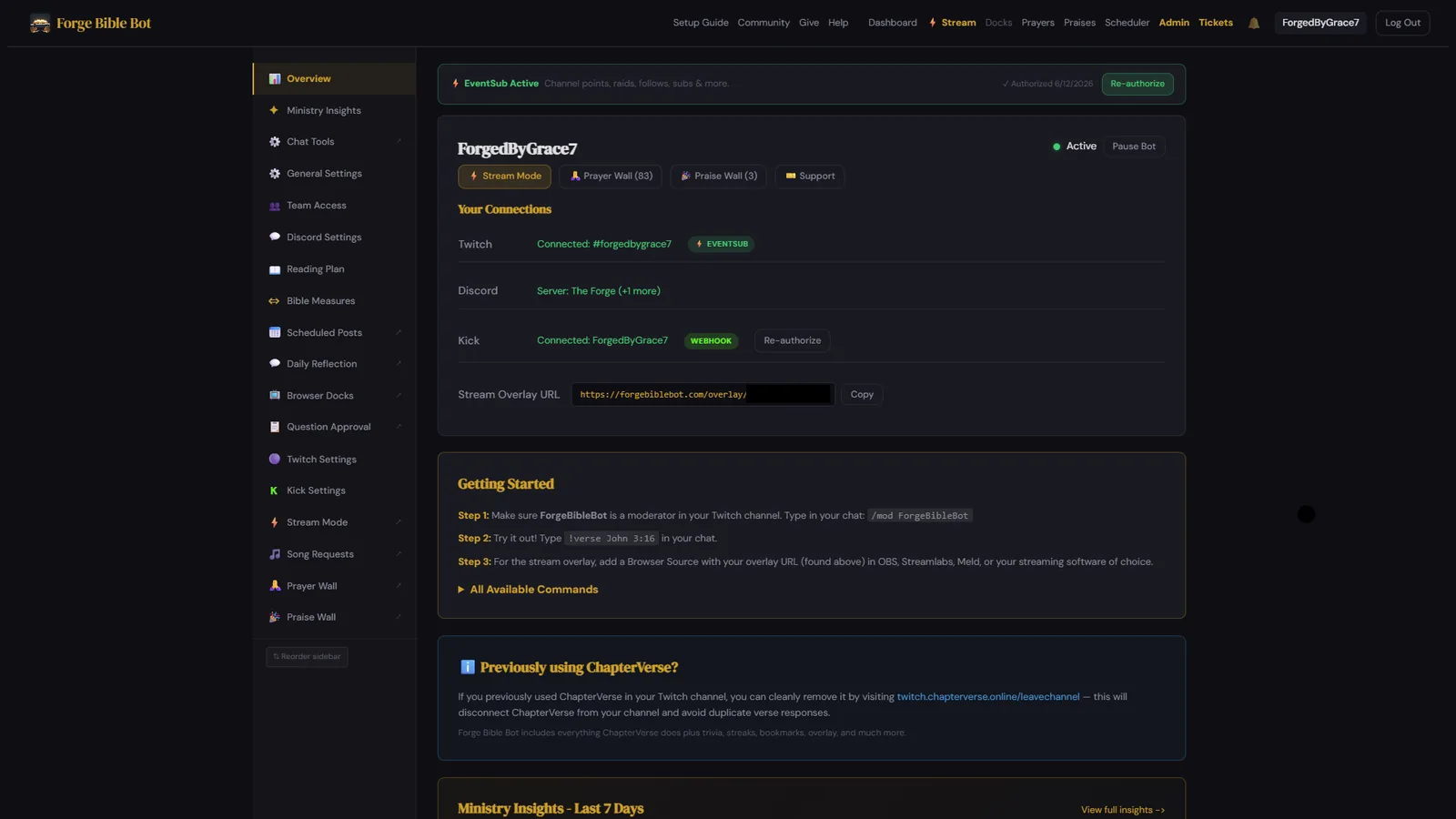
Your Dashboard is where you manage everything. Here's what you can do in each section:
Set your default Bible translation (ESV is the default — 21 translations available, including 3 French), toggle features on/off, configure command permissions with five tiers (everyone, followers, subscribers, VIPs, mods-only), and set a custom bot display name.
Choose which Discord channel gets the daily VOTD auto-post, what time it posts, and your timezone. The VOTD rotates through 70 curated verses across five themes: identity in Christ, grace and salvation, strength and courage, hope and future, and peace and comfort.
Under Verse Source you can switch from Forge Bible Bot's own rotation to YouVersion Bible App, which matches the same daily verse reference shown in the YouVersion app. This uses YouVersion's official Platform API; if it is ever unavailable the bot quietly falls back to its own verse for that day. Only the reference is matched - the wording lines up with the YouVersion app when your viewers read the same translation. The choice applies to your daily auto-post and to !votd on every platform.
Verse image (new in v9.4.0). The daily Discord post also carries a picture of the verse, set on one of five backgrounds that take turns day by day, with the verse text still in the post above it. Pictures are added for ESV, BSB, KJV, WEB, ASV, YLT, BBE, Darby, LSV, FBV, the Geneva Bible, and the French Louis Segond, Darby and Ostervald; other translations post the text only. Forge Bible Bot needs the Attach Files permission in your VOTD channel - without it the verse still posts, just without the picture. Each server has its own Verse image switch at the bottom of the Verse of the Day card.
Configure where prayer requests sync to in Discord. Manage prayer requests from the dedicated Prayer Wall page.
The joyful counterpart to prayer requests! When viewers use !praise or /praise, their praise report is saved and can sync to a dedicated Discord channel with a golden celebratory embed. Configure the praise channel in your Discord Settings.
The !impact command shows your community's stats for the current month — verses shared, trivia rounds played, prayers lifted up, and praise reports. A great way to see God moving through your ministry!
Your dedicated dashboard panel for seeing how your community is engaging with Scripture, prayer, and praise over time. Pick any range from 7 days to a full year and you'll see verse engagement, top translations and books, platform breakdown, prayer and praise momentum, and your most engaged community members. Each creator sees only their own community's data. A great companion to the !impact chat command for the longer view of God's work in your stream.
Copy your overlay URL and enable/disable the overlay. Open the Overlay Editor to visually position each element on a drag-and-drop canvas - including the new Discussion Queue zone. Customize fonts, colors, themes, and display duration. Control which features display with individual toggles.
Toggle these features on/off and control TTS audio. !jesussaid shows red-letter quotes from Jesus in the Gospels. !proverb shows a verse from a curated collection of 100 verses drawn only from the book of Proverbs. !psalm shows a verse from a curated collection of 100 Psalms across 11 themes (comfort, trust, praise, longing, and more) - the same source the channel-point "Psalm of Comfort" redemption now draws from.
Set your community description, testimony page, ministry info, and welcome DM message for new Discord members.
Discord welcome messages need one server setting. Go to Server Settings → Engagement and find the System Messages block. (On older Discord layouts this lives under Overview instead.) Two things there have to be right:
Discord no longer lets bots see member-join events, so Forge Bible Bot watches for Discord's own join notice instead. No notice means no welcome. Forge Bible Bot also needs permission to view whichever channel you pick.
If you do not want Discord's plain "X joined" line in a public channel, point the System Messages Channel at a private staff or bot-log channel that Forge Bible Bot can see. Your community never sees it, and the Forge Bible Bot welcome still posts to the Welcome Channel you chose in your dashboard, plus the DM. The trade-off is that boost celebrations and Discord's setup tips share that same channel, so they move out of public view with it.
Each command can be set to one of five permission tiers: Everyone, Followers, Subscribers, VIPs, or Mods & Streamer Only. Each tier is hierarchical - setting "Followers" means followers, subscribers, VIPs, mods, and the broadcaster can all use it. This is also available in Twitch via !toggle. Permission tiers apply to Twitch commands only; Discord commands are open to everyone in your server unless a command is set to Mods.
Follower detection (updated in v7.9.0): follower status is confirmed with Twitch directly, so the Followers tier works whether or not your channel has follower badges turned on. Previously it relied on the badge alone, which meant channels without follower badges configured could unintentionally restrict commands for their whole chat.
When someone is turned away, Forge Bible Bot now names the tier you actually chose - "limited to Followers & above", not a generic mods-only message. If you have seen your bot report "Mods & Streamer only" for a command you set to Followers, that was a display bug in versions before v7.9.0, not your settings.
Schedule messages to post in your Discord server at any future date and time. Supports plain text or rich embeds with titles, descriptions, colors, footers, and YouTube video URLs. Manage from the Scheduler page.
A mobile-friendly panel for toggling features on/off during your stream without navigating the full dashboard. Access it from the ⚡ Stream link in the nav bar.
Invite trusted moderators to help manage your bot. You generate an invite link from the dashboard, set the scopes you want to grant, and share the link with your team member. They sign in with their own Twitch, Discord or Kick account and only see the sections you authorized. Accepting an invite does not add Forge Bible Bot to their channel, and they do not need to mod it anywhere. If they want it on their own channel later, they can add it from their home page. You can edit or revoke their access at any time.
!q add / !q next / !q done / etc.), and the Question Approval page for !ask submissions. This is the standard scope for your stream mods.Only the creator (you, the channel owner) can pause the bot, remove it, or change Team Access permissions. Delegates can never revoke their own access or invite others - which means even if a delegate goes rogue, you remain in control.
Commands work with ! in Twitch and Kick, or / slash commands in Discord. Your community can also just type Bible references naturally in Twitch and Kick — no command needed.
In Discord: use / slash commands, or mention the bot (@The Forge Bible Bot John 3:16), which also accepts every command word listed below. ! commands do not work in Discord - Discord removed bots' access to ordinary message content. This does not affect Twitch or Kick.
| Command | Description |
|---|---|
| !verse <ref> | Look up any verse (e.g. !verse Romans 8:28-30) |
| !read <ref> | Read a full chapter |
| !search <words> | Search the Bible by keyword |
| !xref <ref> | Find cross-references for a verse |
| !measure <amount> | Convert biblical units: !measure 300 cubits, !measure 1 talent, !measure third hour (also !convert, !cubit, !units) |
| !size <thing> | Dimensions of things in Scripture: !size ark, !size goliath, !size tabernacle (also !dimensions, !howbig) |
| !random | Random encouraging verse |
| !votd | Today's Verse of the Day (builds a streak!) |
| !next [n] | Navigate to next verse(s) |
| !prev [n] | Navigate to previous verse(s) |
| !save | Bookmark the last verse you looked up |
| !saved | View your bookmarked verses |
| !translation <code> | Set your preferred translation (esv, niv, nkjv, nlt, nasb, nasb95, amp, bsb, kjv, web, asv, ylt, bbe, darby, nirv, lsv, gnv, fbv, lsg, jnd, ost) |
| Command | Description |
|---|---|
| !jesussaid | Random red-letter quote from Jesus (with TTS on overlay!) |
| !proverb | Biblical wisdom from the book of Proverbs |
| !psalm | A random Psalm verse from a curated 100-verse collection (comfort, trust, praise, longing, and more) |
| !biblejoke (alias: !joke) | Random Bible-themed joke from a curated library of 100 (many with Scripture pairings). Cooldown configurable in dashboard. |
| !gospel [lang] | Share the Gospel message (12 languages: en, es, de, fr, pt, ko, ja, zh, ru, ar, hi, tl) |
| !evangelio / !evangelium / !evangile / !evangelho / !ebanghelyo | Gospel shortcuts (Spanish, German, French, Portuguese, Tagalog) |
| !gospel-ko / !gospel-ja / !gospel-zh / !gospel-ru / !gospel-ar / !gospel-hi | Gospel shortcuts (Korean, Japanese, Chinese, Russian, Arabic, Hindi) |
| !prayer <request> | Submit a prayer request |
| !praise <message> | Share a praise report — celebrate answered prayers and what God is doing |
| !impact | See community stats for the current month (verses, trivia, prayers, praises) |
| !streak | Check your VOTD streak |
| Command | Description |
|---|---|
| !trivia [easy|medium|hard] | Start a trivia question (500 questions) |
| !a <answer> | Answer the active trivia question |
| !score [user] | Check your trivia score and accuracy |
| !leaderboard | Your community's trivia leaderboard |
| !global | Global leaderboard across all communities |
| Command | Description |
|---|---|
| !wordgame start | Start a Word Game session (mods/broadcaster, Twitch & Kick) |
| !wordgame stop | End the active session and post the leaderboard (mods/broadcaster) |
| !wordgame skip-intro | Dismiss the in-game tutorial overlay early (mods/broadcaster, new in v5.11.0) |
| <any English word> | While a round is running, just type any valid word formable from the letter pool. No command prefix needed. |
| Command | Description |
|---|---|
| !addcom !name <text> | Create your own command (mods/broadcaster). Add +countername after the name to have it count something: !addcom !amen +amens {user} said amen. That is {count_today} today. |
| !editcom !name <text> | Change what an existing command says (mods/broadcaster) |
| !delcom !name | Remove one of your commands (mods/broadcaster) |
| !counter add <name> <Label> | Make a counter (mods/broadcaster). Its command is created for you |
| !counter <name> | Show a counter's current total |
| !counter set <name> <n> | Set or reset a counter (mods/broadcaster). Counters tied to real Forge Bible Bot data cannot be set by hand |
| !quote / !quote 14 | A saved quote, at random or by number |
| !addquote <text> | Save a quote (mods/broadcaster). Add | Psalm 23:1 on the end to tag the verse it came from |
| !delquote 14 | Remove a quote (mods/broadcaster). Its number stays retired |
| Command | Description |
|---|---|
| !topic <topic> | Set a study topic (shows on overlay, reminders every 15 min). Use | for description: !topic 1 Samuel 24-26 | David spares Saul. Bridges to both chats during simulcast (v6.2.0) |
| !topic clear | Clear the study topic |
| !ask <question> | Viewers submit questions to a pending tray for mod/streamer approval (v5.15.0) |
| !q add <topic> | Add a discussion topic directly to the queue (mods/broadcaster) |
| !q next | Activate the next queued topic |
| !q done | Clear the active discussion item |
| !q list | Show the discussion queue |
| !q remove <#> | Remove a queued item by number |
| !q promote <#> | Move a queued item to position 1 |
| !q hide | Hide the queue zone on the overlay without clearing items (v5.15.5) |
| !q show | Restore the queue zone on the overlay (v5.15.5) |
| !q clear | Clear the entire discussion queue |
| !timer <5s-30m> | Start a countdown timer on the stream overlay, e.g. 90s or 10m (mods/broadcaster) |
| !timer stop | Cancel the active timer |
| !toggle <feature> on/off/mods/vips/subscribers/followers/everyone | Toggle features or set permissions during stream (Twitch only, mods/broadcaster). Kick has no chat toggle - use your dashboard there |
| !autotrivia on/off | Toggle auto-trivia mode (Twitch & Kick, mods/broadcaster). Delay configured in the Trivia browser dock |
| !sr <song or link> | Request a song from chat - searches Spotify and adds it to the streamer's active queue. Accepts !sr song artist, !sr song by artist, and !sr song - artist (v7.7.1). Requires Spotify linked; viewers are subject to cooldown and limits (mods/broadcaster exempt) |
| !sr yes / !sr no | Confirm or cancel a shaky search match. When a free-text request resolves to a song that does not match what was typed, FBB asks the requester to confirm before queueing (v7.3.0) |
| !skip | Skip the current song (mods/broadcaster, requires Spotify linked). Alias: !skipsong (v7.3.0) |
| !remove | Remove the last song you requested - skipped when it comes up, or right away if already playing (any viewer, own song only). Alias: !wrongsong (v7.3.0) |
| !current | Show the song playing right now in chat (any viewer, requires Spotify linked). Alias: !song (v7.6.0) |
| !nowplaying on/off | Show or hide the Spotify Now Playing card on the overlay (mods/broadcaster, requires Spotify linked). Alias: !np (v6.10.0) |
| !upnext on/off | Show or hide the Spotify Up Next queue card on the overlay (mods/broadcaster, v6.10.0) |
| !lyrics on/off | Show or hide the Spotify synced-lyrics card on the overlay (mods/broadcaster). Alias: !ly (v6.10.0) |
| !spotify on/off | Show or hide all three Spotify overlay cards at once (mods/broadcaster, v6.10.0) |
| Command | Description |
|---|---|
| !about | Bot info and links |
| !testimony | Creator's testimony page |
| !help | List the viewer commands this channel has turned on (mod tools are left out) |
| !resources (also !crisis, !sos) | Crisis hotlines (988, Crisis Text, Veterans, DV, SAMHSA, RAINN, Postpartum, International) plus Christ-centered recovery. Always on. Fires the comprehensive resource panel to your stream overlay for 30 seconds. |
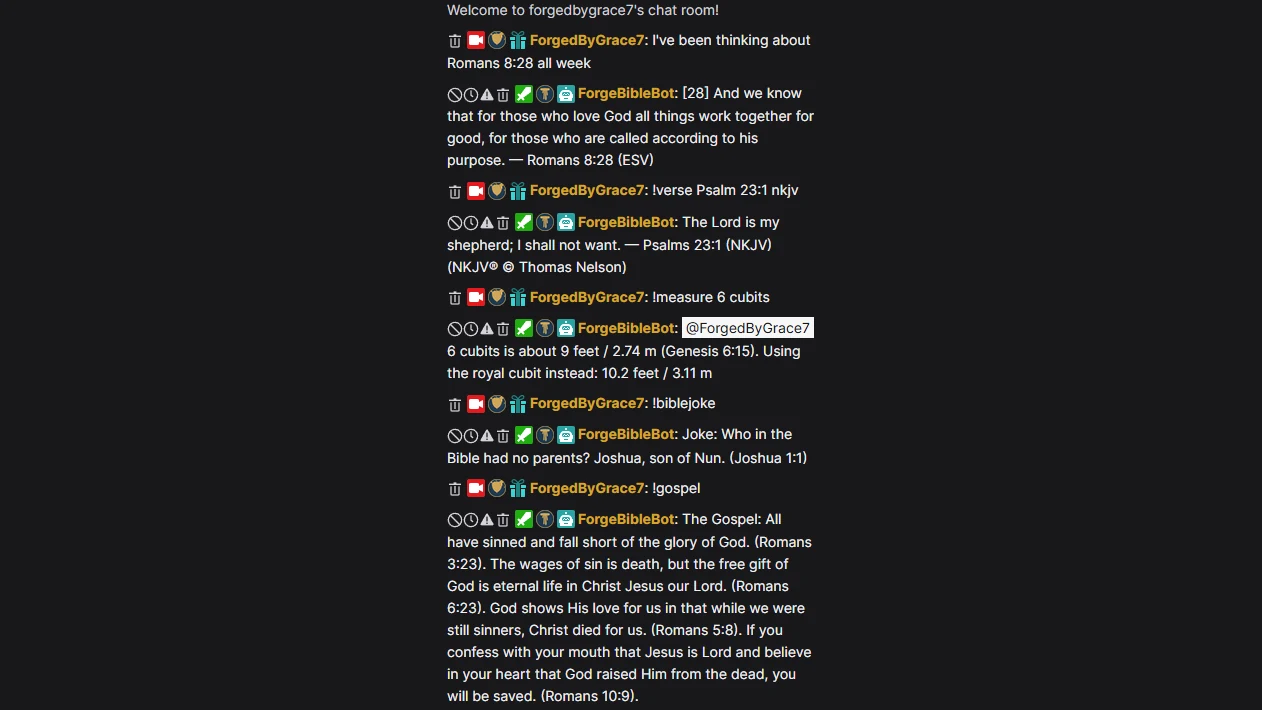
The bot watches all chat messages for Bible references. No command needed — if someone types "I love John 3:16" or just "Romans 8:28", the bot detects the reference and responds with the verse. This works in Twitch, Discord, and Kick. It supports all standard formats: single verses, ranges (Romans 8:28-30), comma-separated verses (John 3:16,17), cross-chapter ranges (Ephesians 4:31-5:2), and multi-reference lookups with semicolons (John 3:16; Psalm 23:1).
Every user can set their preferred translation with !translation <code>. The bot remembers your choice permanently. Available translations:
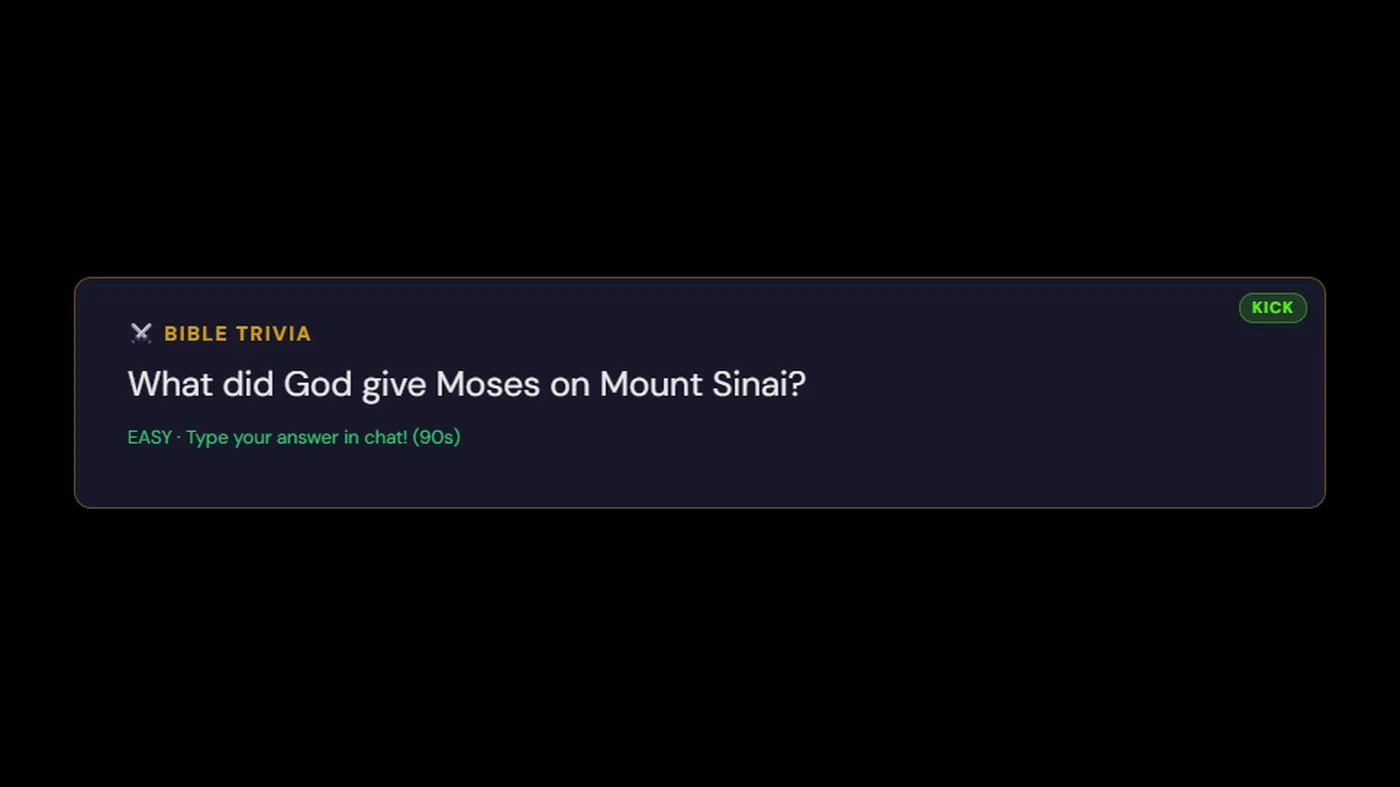
500 questions across three difficulty levels with weighted scoring (easy = 1 point, medium = 2 points, hard = 3 points). The bot uses fuzzy matching and synonym recognition — so "Moses" and "Moses the prophet" both work, and "cypress wood" and "gopher wood" are both accepted for translation-variant answers. Trivia answers display in your community's default translation for consistency.
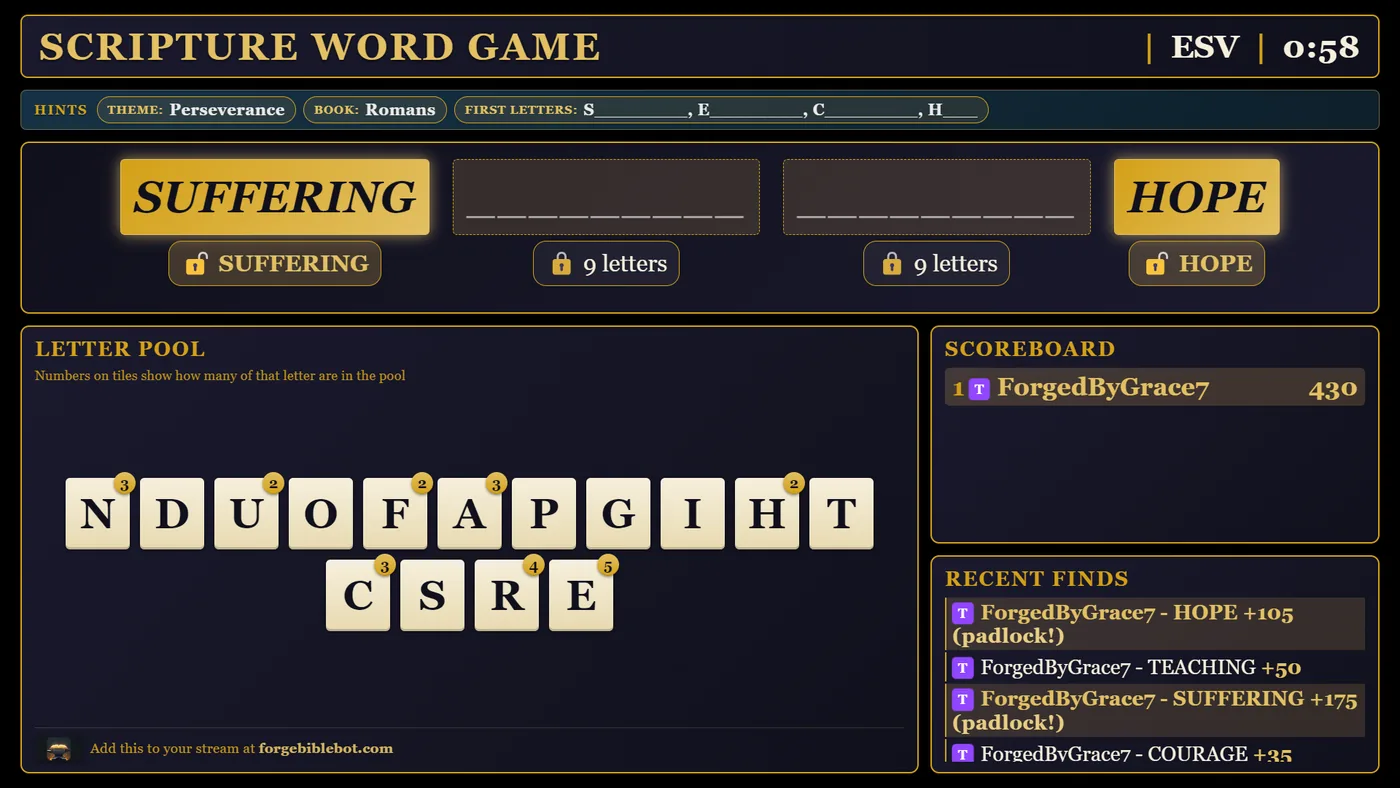
A mod-started chat puzzle that turns Scripture memorization into shared play. The bot picks a Bible verse, shows the verse text with the most meaningful words ("padlocks") replaced by blanks, and posts a pool of letters on your stream overlay. Anyone in chat types any English word that can be spelled from those letters; valid words score points; padlock words unlock that blank in the verse. When every padlock is found - or the round timer runs out - the verse is revealed and a new one begins.
Two layers of play. The competitive layer rewards any valid word - the longer the word, the more points (4 letters = 5 pts, 9 letters = 75 pts). The cooperative layer rewards padlock unlocks (+100 pts each, +250 for the verse-completing find), so chat naturally pulls together to solve the verse rather than just farming long words. A single play-through can earn one viewer hundreds of points without unlocking a single padlock - and that's fine; the verse-completion bonus rewards whoever gets the last padlock.
Progressive hints (default ON). The reference is hidden at round start. At 25% of the timer the theme reveals (e.g. "Salvation"), at 50% the book ("Romans"), at 75% the first letter of each padlock ("S____, B_______, H____"). At 100% - or the moment a viewer completes the verse - the reference and full verse text are revealed. You can disable progressive hints in your dashboard if you prefer the legacy behavior of showing the reference from the start.
Scoring breakdown. 4-letter words = 5 pts, 5 = 10 pts, 6 = 20 pts, 7 = 35 pts, 8 = 50 pts, 9+ = 75 pts. Padlock bonus = +100 pts. Verse completion bonus (going to whoever finds the last padlock) = +250 pts. Scores accumulate across sessions and surface as a per-channel and global Top 10 on your dashboard.
Cross-platform. Twitch chat and Kick chat both feed the same session - one creator, one game, one overlay. Padlock unlocks, the completed verse and the start and end summaries are posted in every chat you are live in, so a Kick viewer sees a Twitch viewer finish the verse and the other way round. Discord is excluded because the overlay is the gameplay surface and Discord doesn't have one. The verse pool is 200 curated verses across 12 themes (salvation, identity in Christ, comfort, faith, love, hope, prayer, wisdom, worship, perseverance, promises, the character of God).
Reading the overlay (new in v5.11.0). The letter pool is the row of tiles at the bottom of the overlay. Tiles that appear more than once in the round display a small gold number badge in the upper-right corner of the tile - that number is how many of that letter are available in the pool. For example, a tile showing the letter E with a gold 3 means viewers can use the letter E up to three times in a single word. Tiles without a badge have exactly one of that letter. The padlocked blanks at the top of the overlay are the key words from the verse waiting to be guessed.
In-game tutorial (new in v5.11.0, redesigned in v5.11.1). Every !wordgame start plays a 2-slide intro: a full-screen welcome splash with a live demo of the letter count badge, then a card anchored below the padlock row with an arrow pointing to the verse blanks (14 seconds total). When the first hint reveals at 25% of the round timer, a third mini-tutorial pops up next to the new hint pill and briefly explains the hint progression - the lesson lands exactly when there's a real hint to point at. Game timer runs underneath the whole time so chat can still play. Mods can dismiss any phase with !wordgame skip-intro, and you can disable the tutorial globally in your dashboard's Word Game settings for channels where regulars already know how to play.
Translation choice (new in v5.6.0). Pick from ESV, NIV, NKJV, or NLT in your dashboard's Word Game settings. The padlock words and letter pool are tuned per translation, so an NLT round will play differently from an NIV round even on the same verse. The Word Game translation setting is independent of your channel default translation for verse lookups.
Size on stream. The word game is drawn on the same 1920x1080 canvas as the rest of the overlay and scales with your Browser source. If it looks small or soft on stream, open the source's properties and check that Width is 1920 and Height is 1080, then right-click it and choose Transform, then Fit to screen.
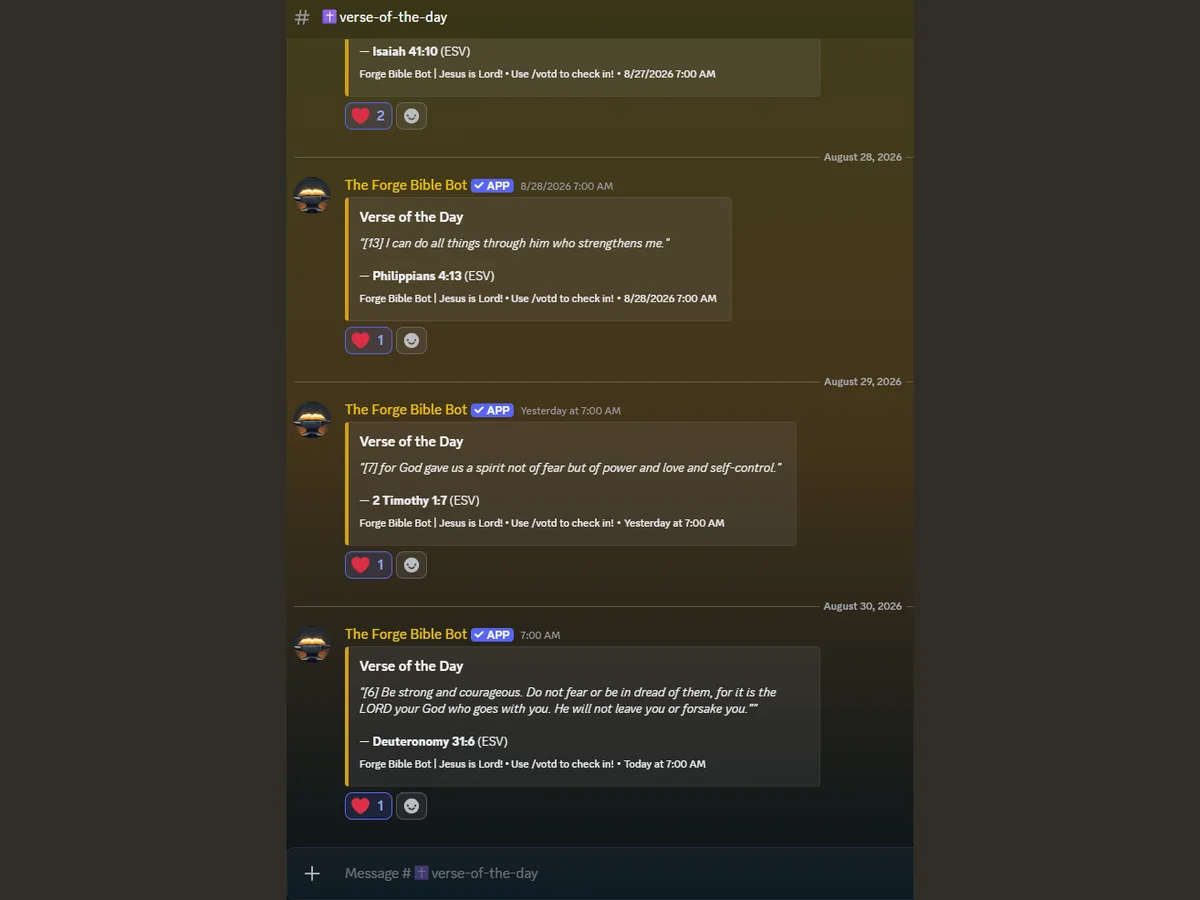
Every time someone uses !votd, they build a streak. Miss a day and the streak resets (but the best streak is always remembered). Streak milestones: 🔥 3+ days, 🔥🔥🔥 7+ days, 🔥🔥🔥🔥 14+ days, 🔥🔥🔥🔥🔥 30+ days. Great for encouraging daily Scripture engagement!
Forge Bible Bot is a Progressive Web App. You can install it on your phone, tablet, or desktop — no app store needed. On iOS, tap the Share button then "Add to Home Screen" in Safari. On Android and desktop, you'll see an install prompt when you visit the site. Once installed, you get quick access to your dashboard and can receive push notifications.
Scripture measures things in cubits, shekels, ephahs, hins and denarii, and tells time in watches of the night.
None of that lands for a modern reader without a conversion. !measure and !size put the
modern equivalent in chat the moment somebody asks.
This came from a creator working through Exodus and the tabernacle instructions, which is exactly where it earns its keep. It works the same on Twitch, Kick and Discord.
!measure 300 cubits answers with about 450 feet or 137 meters, and shows what the royal cubit would give instead. Both imperial and metric come back every time.
Aliases: !convert, !cubit, !units. On Discord it is /measure.
!size ark gives Noah's ark at 300 by 50 by 30 cubits with the modern figures beside them. Also available: the Ark of the Covenant, the tabernacle and its courtyard, the Most Holy Place, Solomon's temple, the bronze sea, Jachin and Boaz, Goliath, Og's bed, Nebuchadnezzar's image, Haman's gallows, the New Jerusalem, and the wall of Ezekiel's temple.
Aliases: !dimensions, !howbig. On Discord it is /size.
Money comes back in wages, never dollars. A denarius is one day of wages for a laborer, which is what Matthew 20:2 says outright, and a talent is roughly twenty years of them. There is no honest dollar figure for an ancient coin, so Forge Bible Bot does not invent one.
!measure third hour and !measure fourth watch handle the time references in the Gospels.
When your overlay is on, the answer also appears on stream. Named objects get a scale comparison bar against a six foot person, so your viewers feel the size rather than just reading a number. Goliath next to a person lands very differently than "nine feet nine". Toggle it in General Settings > Overlay Display Controls > Bible Measures.
Some of the most-asked objects in the Bible carry no measurements at all. The cross. The stone at the tomb. The manger. The crown of thorns. Golgotha. The upper room. The temple veil.
Returning nothing for those would be the wrong answer on a Christian channel, so !size the cross
works. But it answers differently on purpose: what the text actually records comes first, then what historians
estimate, labelled as estimate and always given as a range rather than a single number.
The distinction matters more than it might look. "Roman crossbeams weighed 75 to 125 pounds" is a well-evidenced claim about execution practice. "The cross weighed 100 pounds" is a claim about one specific object that nobody can support. Forge Bible Bot will say the first and will not say the second.
On your overlay these render as prose rather than as a measurement card, with no scale bar and a clear Scripture does not specify label. That is deliberate. Chat messages get screenshotted and overlay cards get clipped, and a disclaimer is always the first thing lost in transmission. Making the two kinds of answer look different means the framing survives even when the caveat does not.
One entry is a refusal rather than a reconstruction. Ask about the appearance of Jesus and Forge Bible Bot will tell you that Scripture never describes it, and that Isaiah 53:2 says so on purpose. There is no estimate offered there and there will not be one.
The full list, with what the text says and what historians estimate for each, is in your Dashboard under Bible Measures.
There is no single biblical cubit. The common cubit runs about 18 inches; a longer royal cubit adds a handbreadth and comes out near 20.4 inches. Ezekiel 40:5 states plainly that his measuring reed uses the longer standard, and 2 Chronicles 3:3 says the same of Solomon's temple. Chat replies use the common cubit and show the royal figure alongside it, and where Scripture specifies the long cubit, that is what gets used.
The full reference table, with a passage for every unit, lives in your Dashboard under Bible Measures, along with a calculator you can use off-stream while you prepare.
These features run automatically once your Twitch account is connected to Forge Bible Bot. Enable each one individually from your dashboard's Twitch Settings panel.
Automatically greet each viewer the first time they chat during your stream. Resets each stream day. Enable in Twitch Settings → First-Chatter Welcome.
When another streamer raids your channel, the bot sends a customizable welcome message. Use {raider} for the raiding streamer's name, {raider_login} for a URL-safe name to build a twitch.tv/ link, and {viewers} for the viewer count. Enable in Twitch Settings → Raid Welcome.
Thank new followers automatically with a customizable message. Includes a 5-minute cooldown per user to prevent spam. Enable in Twitch Settings → Follow Welcome.
When someone subscribes or cheers, the bot responds with a thank-you message including a random Bible verse. Enable in Twitch Settings → Sub & Cheer Responses.
The sub response understands {user}, {months} (months bought at once, such as 1, 3 or 6), {total_months} (total months subscribed to your channel), {tier} (Tier 1, Tier 2, Tier 3 or Prime), {streak} (months in a row), {random_verse}, and {channel}. For example: Thank you {user} for {total_months} months of faithful support! {random_verse}. A first-time sub counts as 1 month, and the bot writes "1 month" rather than "1 months" for you. The cheer response understands {user}, {bits}, {random_verse}, and {channel}.
Twitch only sends a resub to the bot when the viewer shares their resub message in chat, so a resub nobody shares gets no response. {streak} stays blank unless the viewer also chooses to share their streak, and it is always blank on a first-time sub. Gift subs, single or to the community, use a built-in thank-you that names the gifter.
Optional sections. Put part of your sub response in [square brackets] and it only shows when every variable inside it has a value. If any one of them is blank, that whole part is left out, so a message never reads half-finished. The brackets themselves never appear in chat, and brackets with no variable inside show exactly as you typed them. Try this one, or click Use this example under the sub response on your dashboard:
{user}, thank you for {total_months} months in the inner forge![ That's {streak} months in a row.] {random_verse}
When a viewer shares a 7 month streak, chat sees "ForgedByGrace7, thank you for 10 months in the inner forge! That's 7 months in a row." followed by the verse. When they don't share it, or it's their first sub, the bot stops after "forge!" and goes straight to the verse. Optional sections work in the Twitch sub response.
On Kick, see Kick Setup: the same messages live in Kick Settings → Ad Breaks (Kick), and Kick adds Run Ad Break buttons in Stream Mode and the docks.
When a Twitch ad break starts (manual or an Ads Manager midroll), the bot posts your custom message in chat, can share a random Bible verse while everyone waits, shows a countdown on your stream overlay, and welcomes chat back when the break ends. Use {duration} (seconds), {minutes} (friendly wording), and {channel} template variables. Detecting ad breaks requires one extra Twitch permission - if you connected before this feature launched, the dashboard card shows a one-click Reconnect Twitch button to grant it. Until you opt in, nothing changes for your channel. Enable in Twitch Settings → Twitch Ad Breaks.
Maintain a list of Twitch usernames (friends, fellow streamers, VIPs) who get an automatic shoutout the first time they chat each stream. Set per-user custom messages or use your default. Manage in Twitch Settings → Auto-Shoutout System.
Shoutout variables. The default message and every custom message can use {user} for their display name, {username} for their login name (for links), {game} for the game they last streamed, and {title} for their last stream title. The game and title come from their Twitch channel, which keeps both after the stream ends. Put {game} or {title} in [square brackets] to leave that part out for anyone Twitch has no game or title for, the same way optional sections work in the sub response:
Go check out {user} at twitch.tv/{username}![ Lately they have been playing {game}.]
A long list scrolls inside the card and can be searched by username. Edit on any row corrects the username or changes its message. Names are stored the way Twitch writes them, so @Name, name and a pasted channel link all become the same login, and the same person cannot be added twice.
Map your Twitch Channel Point rewards to bot actions. Here's how to set it up:
1 Create a Custom Reward on Twitch — Go to your Twitch Creator Dashboard → Viewer Rewards → Channel Points → Manage Rewards & Challenges. Create a new custom reward (e.g., "Random Bible Verse").
2 Add a Mapping on FBB — In your FBB dashboard, go to Twitch Settings → Channel Point Redemptions and click "Add Mapping". Enter the exact reward name (case-insensitive) and choose a bot action.
3 Test it — Redeem the Channel Point reward in your chat and the bot will execute the configured action.
Available actions: random_verse, verse_lookup (reads user input), votd, gospel, trivia, jesus_said, proverb, psalms, read, prayer_request, praise_report, custom_message.
Kick rewards run the same twelve actions. Open Kick Settings → Channel Point Rewards (Kick) and choose + Add Kick Reward. You can either:
With Auto-complete and refund redemptions on (the default), Forge marks each redemption done once the action runs, and refunds the viewer's points when it cannot run one, such as a verse lookup with no valid reference or trivia while a question is already open. Switching a mapping off in the list also switches off a reward Forge created on Kick, so viewers cannot redeem something Forge will not answer. Deleting a mapping for a reward Forge created asks whether to remove the reward from Kick too.
Kick allows up to 50 rewards per channel, reward names up to 50 characters, and descriptions up to 200 characters. Channel point rewards need the one-time Kick sign-in described under Kick Setup.
Get automatic Discord notifications when your stream goes live or ends. Twitch and Kick alerts are configured separately so you can route them to different channels if you want.
1 Select a Discord channel for go-live alerts
2 Enable "Post when stream goes live" and optionally "Post when stream ends"
3 Customize messages - use {streamer} for your display name
4 Optional: Select a role to ping - that role will be mentioned when the go-live notification posts, triggering real notifications for members with that role.
Available as of v5.0.0-beta.3. Same setup as the Twitch side but driven by Kick's livestream.status.updated webhook. If the bot detects your Kick stream going live or ending, it posts a Kick-colored embed to whichever Discord channel you pick. The go-live channel and role ping for Kick are stored separately from Twitch so you can mix and match.
Forge Bible Bot matches incoming usernames against a curated list of known spam-service patterns (like the ownkick_com_XXXX fake-viewer bots). Matched users get their greetings suppressed so the bot doesn't amplify them. On Kick only, you can additionally opt in to auto-moderation that timeouts or bans matched users via Kick's moderation API.
On Twitch, FBB is not set up as a moderator and Twitch's AutoMod already handles removing spam messages. FBB just stops greeting matched usernames so they don't get amplified in chat. Nothing to configure - it's always on when the passive filter toggle is enabled.
1 Open Kick Settings and find the Spam Bot Protection card
2 Leave passive on (default) to suppress greetings for matched usernames
3 Optionally enable active moderation to timeout or permanently ban matched users via Kick's moderation API
4 Choose action - Timeout (safer, default 10 minutes) or Permanent Ban
moderation:ban scope on your Kick OAuth token. If you linked Kick before v5.0.0-beta.3, sign out and sign back in with Kick to grant the new scope. A banner on your Kick Settings card will tell you if a re-auth is needed.
Patterns are maintained centrally and updated as new spam services appear. Check the Spam Protection card on your dashboard for a weekly count of how many bots have been blocked in your channel.
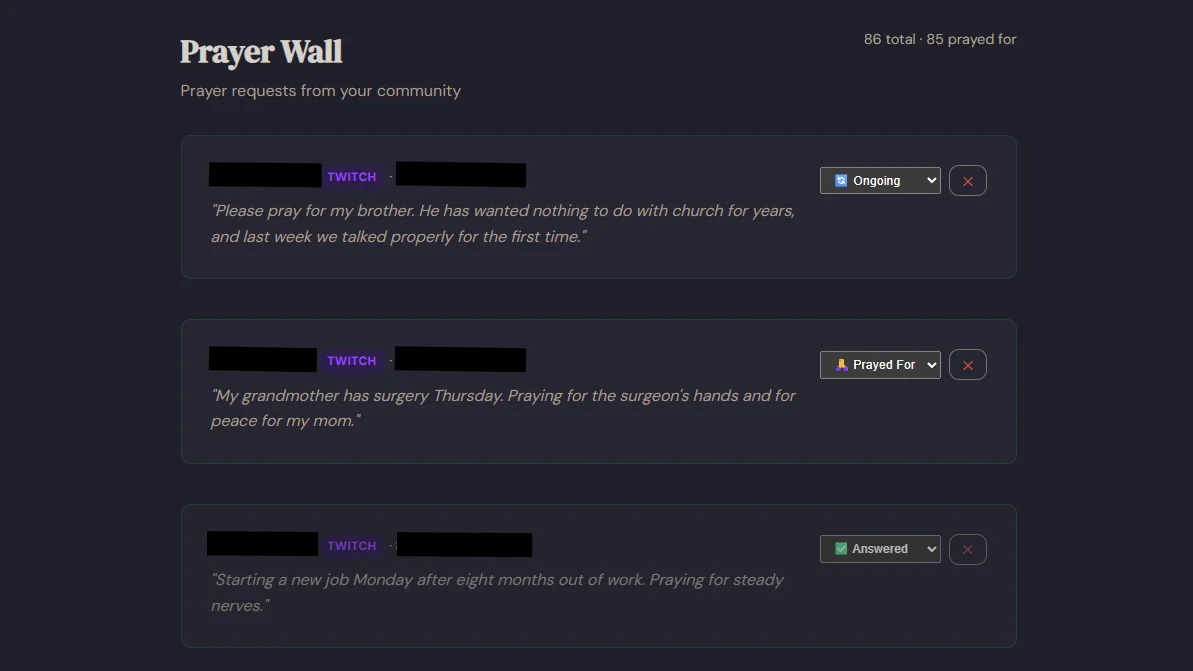
Enhances the Prayer Wall with status tracking and automated follow-up nudges for your prayer team.
Each prayer request now has a status: Pending (default), Prayed For, Ongoing, or Answered. You can update the status from the Prayer Wall page using the dropdown on each request.
When enabled, a daily cron job checks for prayers that haven't been updated in a configurable number of days (default 7). It sends a gentle nudge to your designated follow-up channel in Discord — a separate channel from the main Prayer Wall, so nudges go to your leadership or prayer team, not the whole server.
1 Create a follow-up channel — In your Discord server, create a private channel for your prayer/leadership team (e.g., #prayer-team).
2 Configure in Dashboard — Go to Discord Settings → Prayer Follow-Up. Enable the feature, select the follow-up channel, and set the nudge interval.
A community Scripture memorization feature. One verse per month — intentionally kept simple so your community can focus on doing one thing well.
1 Enable it — Go to Discord Settings → Monthly Memory Verse and toggle it on.
2 Set the verse — Enter a reference (e.g., Psalm 119:11) and optionally pick a translation.
3 Choose day & channel — Pick which day of the week to post reminders and which Discord channel to use.
Walk through Scripture with your community using a structured reading plan. Pick one in your dashboard, set a start date, and FBB tracks where you are in the plan automatically. The !reading command in chat shows today's passage; an optional daily Discord post drops it in your chosen channel each morning; an optional OBS overlay surfaces it on stream.
1 Pick a plan in your dashboard under Reading Plan in the sidebar. Reading plans are fully opt-in - no plan is set until you choose one.
2 Set a start date. Day 1 of the plan begins on this date. If you leave it blank, it defaults to today when you save.
3 (Optional) Enable daily Discord post. Pick a channel and a post time. The bot posts today's reading as a Discord embed each morning at your chosen time in your chosen timezone. Default is 8:00 AM America/Chicago.
4 (Optional) Enable OBS overlay. When viewers run !reading on Twitch or Kick, today's passage briefly displays on your stream overlay alongside the chat response.
!reading | Show today's reading |
!reading yesterday | Show yesterday's reading (catch-up) |
!reading tomorrow | Preview tomorrow's reading |
!reading day 47 | Jump to a specific day number |
/reading | Discord slash command equivalent |
!plan | Alias for !reading |
A simple countdown timer that displays on your OBS overlay — great for break timers, prayer time, or Q&A countdowns.
| Command | Description |
|---|---|
| !timer <5s-30m> | Start a countdown timer, 5 seconds to 30 minutes, e.g. 90s or 10m |
| !timer stop | Cancel the active timer |
During Bible study streams, great questions and topics often come up faster than you can address them. The discussion queue lets mods and the broadcaster park those topics so nothing gets lost, then work through them one at a time.
1. !ask (viewers, v5.15.0) - Any viewer can submit a question with !ask <your question>. The bot replies Question received, pending review. The question lands in a pending tray that only mods and the broadcaster see, on the OBS dock or on the approval page in the dashboard. A mod approves or denies each submission. Approved questions join the regular queue with full credit chain (asked by @viewer, approved by @mod). Denied questions disappear from chat silently but land in an audit log, kept for 30 days, so the streamer can see which mod denied what. Nothing reaches the OBS overlay until a mod has approved it - viewer-submitted vulgarity cannot end up baked into your VOD.
2. !q add (mods/broadcaster) - Adds directly to the queue without a review step. Use this for questions asked verbally on stream, in Discord, or anywhere else outside chat.
Your mods can approve and deny !ask questions from a private Discord channel, with no Forge Bible Bot sign-in. Each question is posted there with Approve and Deny buttons, and pressing one does exactly what the dock does. The message then changes to show who approved or denied it, and it stays in the channel as a record. A question handled in the dock or on the approval page updates its Discord message too.
Anyone who can see that channel can use the buttons. Forge Bible Bot does not check Discord roles here, so who can approve is decided by who can see the channel. The buttons only work in the channel you picked, in a Discord server linked to your account. Questions from Twitch and Kick both go to the same channel.
| Command | Description |
|---|---|
| !ask <question> | Submit a question for mod review. 2-minute cooldown per viewer, 225 char limit, max 15 pending at a time |
| Command | Description |
|---|---|
| !q add <topic> | Add a discussion topic to the queue |
| !q next | Pull the next item from the queue and make it active |
| !q done | Clear the active discussion item |
| !q list | Show the full queue in chat |
| !q remove <#> | Remove a specific item by number |
| !q promote <#> | Move an item to position 1 |
| !q hide | Hide the queue zone on the overlay; items stay in memory (v5.15.5) |
| !q show | Restore the queue zone on the overlay using current state (v5.15.5) |
| !q clear | Clear the entire queue (including pending) |
!q clear or Clear All in the dock when a study is done. Questions and denied entries are deleted automatically after 30 days!queue is a busy command name. If a game, karaoke or request bot in your channel already owns it, open General Settings in your dashboard, expand Discussion Queue, and switch off Also answer to !queue. Switching the alias off hands !queue back to the other bot and leaves !q working normally. Switching off the whole card silences both. Mods and the broadcaster can also do this mid-stream with !toggle queue off on Twitch, where the chat toggle lives; on Kick, use the dashboard. Both switches can be set differently for Twitch and Kick under each platform's Override section!q or !queue gets no reply at all, so another bot's queue can run in your chat without Forge Bible Bot talking over it (v7.21.0)!q hide clears just the queue zone from the overlay while keeping every item in memory; !q show brings it back instantly. No browser source refresh needed. Perfect for starting-soon screens or moments when you want the overlay clean during a transition. (v5.15.5)You are studying Judges 2-4 with your topic set via !topic Judges 2-4. A viewer types !ask Why does God use such flawed leaders? and the bot replies Question received, pending review. The OBS dock chimes; your mod sees the pending item and clicks Approve. The question joins the regular queue. When you finish the current discussion you type !q next and the bot announces: "Now discussing: Why does God use such flawed leaders? (asked by @ViewerName, approved by @ModName)" - and it appears on your OBS overlay. Your viewer gets the dignity of seeing their question discussed under their own name.
Connect a Ko-fi account and gifts appear on your stream overlay, in your Twitch and Kick chat, and in your Discord server. Forge Bible Bot never touches the money: it only receives a notification from Ko-fi that a payment completed, and shows it the way you have asked it to.
Your verification token is how we tell your gifts apart from every other creator's. Ko-fi's notification carries no account name, so the token is the only thing identifying it. Treat it like a password. It is stored encrypted, and no two accounts can use the same one.
If you regenerate the token in Ko-fi, reconnect here. Otherwise gifts keep arriving, fail to match your account, and your total quietly stops moving. The dashboard will show a warning when it has reason to think this has happened.
Add the overlay address from the Giving panel as a Browser source in OBS. Set the Width and Height in the source properties rather than dragging the corners: typing the numbers re-renders it sharp at that size, while dragging stretches a picture that was drawn for a different one.
Sizes that sit well are 480x200, 640x265 and 800x330. Compact mode drops the month, the footer line and the top rule so the bar can be slimmer: try 600x150, 800x200 or 1000x250. Anything else works, it simply wants roughly two and a half times as wide as it is tall.
The total resets by itself on the 1st, at midnight in your own timezone, and there is nothing to press. It is not a stored number that accumulates until you clear it: it is a sum over dated records, so when the date changes the answer changes with it.
One-time gifts, monthly members and commissions all count. Shop orders are recorded but do not count toward the goal, which is how Ko-fi's own goal treats them. Gifts in a currency other than your goal currency are recorded and left out of the total, because converting them would need an exchange rate we do not have.
Both are off until you turn them on. The chat alert posts on Twitch and Kick, in whatever wording you choose, with placeholders for the supporter's name, the amount, and where the goal stands. The Discord announcement posts an embed in one channel you pick.
On Kick, links are removed from bot messages unless Forge Bible Bot is a moderator in your channel. That is Kick's filter, not ours, so if you want your giving address in the alert, mod the bot.
A supporter can mark their gift private on Ko-fi. When they do, their name and message are shown nowhere at all: not on the overlay, not in chat, not in Discord, and no announcement is sent. The amount still counts toward your total, which names nobody. This is a requirement of using Ko-fi's notifications, and it is also simply right.
Supporter email addresses and postal addresses are discarded before anything is written down. Nothing here needs them.
The figures shown are drawn from Ko-fi's notifications and are meant for display. If a notification fails to arrive, the total will be short until the next one. Your Ko-fi account is the authoritative record, and that is the one to use for bookkeeping.
The Streamer Directory is a public page of Twitch and Kick channels that use Forge Bible Bot and chose to be listed. Viewers and other streamers can see who is live right now, search by name, and filter by platform and by what you stream. It is there so believers on the same platforms can find each other, watch each other, and raid each other.
Nothing is listed until you do this. Only the channel owner can turn a listing on. People you have given Team Access can change your content types or remove the listing, but they cannot list you, because listing includes confirming your own age.
Your channel name and profile picture, your bio, a link to every Twitch and Kick channel connected to your account, the content types you picked, and, while you are live, your stream title, category and how long you have been live. Your bio is your Twitch About bio, or your Kick channel description when the Twitch one is empty. Change it on Twitch or Kick and the directory picks it up within a few minutes.
If you simulcast, one listing carries both links. Discord servers are never listed.
Viewer counts are never shown anywhere on the directory, and Live Now is shuffled for each visitor. A stream with three viewers sits beside a stream with three hundred, and nobody holds the top spot.
A channel that has not streamed in 60 days is hidden automatically, and comes back by itself the next time it goes live. There is nothing to turn back on.
To leave, press Remove my listing in the dashboard. Your channel comes off the page straight away, and the copies of your name, picture, bio and stream details kept for the listing are deleted.
Listed channels can also be posted in Discord servers that use Forge Bible Bot when they go live. Any server can turn this on: open Discord Settings, pick the server, open Streamer Directory Live Feed, switch it on and choose a channel. A channel of its own works best.
Every server gets the same feed: everyone who is listed and live, with no picking and choosing. Each post shows the streamer's name, picture, bio, stream title and category with links to watch, and comes down 10 minutes after the stream ends, so a stream that drops and reconnects keeps its post. Nobody is pinged. If you are listed and your own go-live alert already posts in a server, you are left out of that server's feed so you are not announced twice.
If Forge Bible Bot cannot post in the feed channel, Discord Settings says why. After three failed tries in a row the feed turns itself off for that server only, and you get a notification telling you what to fix.
The top of the directory says plainly that a listing is not an endorsement. Forge Bible Bot does not review channels before they appear and does not vouch for anyone's doctrine, content or conduct. Viewers are encouraged to watch with discernment.
Your own commands, counters your community adds to together, and the quotes worth keeping. Everything here lives under Chat Tools in your dashboard, and all of it is shared across Twitch, Kick and Discord - one definition, answering in every room you are in.
A command is a name and whatever you want the bot to say. Someone types !mysocials and Forge Bible Bot answers. Create them in the dashboard or from chat with !addcom.
Names that Forge Bible Bot already uses are refused, and the refusal offers you one that works - ask for !verse and it will suggest !myverse. That list is short on purpose. A name is only held back when the feature behind it needs something a message cannot do, like the Twitch clip button or a poll. !lurk, !hug, !so, !tip, !socials, !discord and !raid are yours to write, because every channel words them differently and yours should sound like you.
Start from a common command. The Commands tab offers a handful of ready-made ones - a lurk message, a welcome, a shoutout, your links, today's reading. Picking one fills the form so you can read it over and change anything before it goes live. Nothing is added to your channel until you press Add.
Cooldowns. Each command has two: how long one person waits before using it again, and how long chat as a whole waits. They start at 30 seconds and 5 seconds, which suits most commands. A quiet informational one can go lower; something your chat would happily spam can go higher.
A counter is a running number your whole community adds to. Amens, hallelujahs, verses memorized. Add one and its command is made for you, so it works the moment you save it.
The number is shared across every platform. An amen in Twitch chat, an amen in Kick chat and an amen in your Discord server all add to the same total, because that is one community meeting in three rooms.
Some counters read numbers Forge Bible Bot already keeps - prayers answered, praise reports, verses unlocked in the Word Game. Those update themselves and cannot be set by hand, so the number stays true.
One person cannot run a counter up on their own; there is a short wait between uses for each viewer. A room full of people all answering at once is a different thing, and every one of them counts.
No "!" needed. A counter with Count it when chat says it switched on also adds one when someone simply says the word in Twitch or Kick chat. "Amen", "Amen!" and "AMENNN" all count for an Amens counter; "ramen" and "amend" do not. A Hallelujahs counter hears halleluyah and alleluia too. Amens and Hallelujahs counters have it on from the start, and you can switch it on or off for any counter you add to by hand under Chat Tools. Each person adds at most once every 30 seconds, whether they type amen or !amen.
Forge Bible Bot counts quietly so it never talks over a worship moment. It speaks only at milestones - 10, 25, 50, 100 and every 100 after in a stream, and every 100 all-time - with a line like "25 amens this stream and counting!" Discord is not included, because Forge Bible Bot only sees Discord messages that mention it. The counter's command still works there the usual way.
Quiet commands. !amen and !hallelujah count quietly too, so typing the command and saying the word behave the same. Any command linked to a counter can be made quiet under Chat Tools - tick Count quietly when you edit it. In Discord a quiet command still answers, because there someone has called the bot by name.
Save what is worth keeping with !addquote, and bring it back any time with !quote or !quote 14. A quote can carry the Scripture it came from - add | Psalm 23:1 on the end.
Quote numbers are permanent. Deleting one retires its number instead of shuffling everything below it, so a clip title or an old chat message that named a quote still means what it meant.
A timer posts a message on a rhythm while you stream. Set one up under the Timers tab with however many messages you like - they take turns, so nobody hears the same reminder twice in a row. Variables work here too, so a timer can carry {reading} and say something true today rather than something written last month.
A timer only speaks into a conversation. Every timer has a minimum number of chat messages it needs to have seen in the last five minutes before it will post. If the room has gone quiet, the timer waits. A bot talking to an empty channel teaches people to skip past everything it says, including the things that matter, so Forge Bible Bot will not do it.
Posting while you are offline is off unless you turn it on. Twitch and Kick only - Discord has Scheduled Posts, which suits a server better than a message repeating every half hour.
| Write this | And the bot fills in |
|---|---|
| {user} | Whoever ran the command |
| {touser} | The name they typed after the command |
| {channel} | Your channel or server name |
| {platform} | Twitch, Kick or Discord |
| {args} | Everything they typed after the command |
| {1} {2} | Just the first or second word they typed |
| {1:} | From the first word onward |
| {random:a|b|c} | One of your options, picked at random |
| {uptime} | How long you have been live |
| {time} | The time where you are |
| {time:2026-12-25} | A countdown, like "in 12 days" |
| {count} | This command's counter, after adding one |
| {count_today} | The same counter, today only |
| {count_session} | The same counter, this stream only |
| {counter:amens} | Any counter by name, without adding to it |
| {quote} / {quote:14} | A saved quote, at random or by number |
| {votd} | Today's Verse of the Day |
| {verse:John 3:16} | Any verse you name |
| {reading} | Today's reading from your plan |
| {prayers_lifted} | Prayers submitted this month |
| {praises} | Praise reports this month |
| {prayers_today} | Prayers submitted today |
| {praises_today} | Praise reports today |
| {verses_today} | Verses looked up today |
| {verses_month} | Verses looked up this month |
An encouragement command is one line: !addcom !encourage {user}, hold on to this: {verse:Isaiah 41:10}
It will not fetch a web page for you. Some chat bots let a command pull in whatever a web address returns. Forge Bible Bot runs on a server holding every ministry's account details and prayer wall, and pointing it at addresses supplied from chat is not a risk worth taking with those.
It will not write a reply with AI. Everything Forge Bible Bot says traces back to Scripture, a licensed Bible translation, or words you wrote yourself. That is the reason a Bible bot can be trusted in a room where people are being taught. A language model answering under your ministry's name will eventually invent a verse reference or state something wrong with confidence, and nobody watching would be able to tell. !ask already searches real Scripture, which is the honest version of the same idea.
On Twitch and Kick, type them in chat. On Discord, mention the bot first: @The Forge Bible Bot !mysocials. Every part of Chat Tools can be turned on or off per platform under Twitch Settings, Kick Settings and Discord Settings, and a trusted mod can be given access to all of it with the Stream Controls permission under Team Access.
If a setting has you stuck, you do not have to follow the steps yourself. You can let ForgedByGrace7, who runs Forge Bible Bot, open your dashboard and make the change for you.
ForgedByGrace7 is told straight away. Support Access lasts 48 hours, and you can give 48 more from the same page if he needs longer.
While it is on, he can do what you can do on your dashboard: settings, commands, Discord channels, the overlay, scheduled posts, the prayer and praise walls, giving, and the helpers you already have in Team Access.
A few things stay with you. He cannot sign in to your Twitch, Discord, Kick or Spotify accounts or connect and reconnect them. He cannot create Team Access invite links, because whoever holds one gets lasting access. He cannot list you in the Streamer Directory, because listing includes confirming your own age. And if you help manage someone else's dashboard, he cannot open it through yours.
The Support Access page lists every change made, with the old and new value for each setting, and when he opened and left your dashboard. The list is kept for 90 days. Press End access now at any time and he can no longer open your dashboard, even if he is in it at that moment. Otherwise it ends by itself after 48 hours.
"Your word is a lamp to my feet and a light to my path." — Psalm 119:105
Built for God's glory by ForgedByGrace7 ✝️